


How to Track AI Traffic in GA4 (ChatGPT, Perplexity, Gemini and More)



Quick Answer: How Do You Track AI Traffic in GA4?
- The fast route: Reports > Acquisition > Traffic acquisition, then scan the Session default channel group for an AI Assistant row. Honestly, that’s the whole one minute method to track AI traffic in GA4. Then add Session source / medium as a second dimension to see which assistant sent each visit.
- The catch: GA4 labels a visit only if the click brings a referrer or a tag with it. No signal? The visit lands in Direct. So treat what you see as a floor.
- The upgrade: Save an Exploration or a custom channel group that also catches assistants Google’s list misses, then read sessions, engagement rate and key events next to Organic Search.
- The limit: GA4 can’t tell you which prompt or answer sent a visitor. Mentions and citations need a separate AI visibility monitoring routine.
Good news first. You can track AI traffic in GA4 with much less setup than before, since Google added a dedicated AI Assistant channel in 2026 (see its release notes). It’s a head start, nothing more. Below you’ll find the exact reports to open, a source table to check against your own data, a reusable custom report, a way to group the traffic, and a blunt look at what GA4 misses. Curious about the other half, whether AI answers mention you at all? The guide to tracking whether AI answers mention your brand has it.
Who Needs to Track AI Traffic in GA4?
Anyone curious whether ChatGPT, Perplexity, Gemini or Claude send real visitors. That’s startups looking for early signals, SMBs and mid sized companies defending content spend, and agencies reporting to clients. For a first pass you don’t need a new tool. You can track AI traffic in GA4 with the right report, as long as you know what it can’t show.
What Is AI Traffic in GA4?
Put simply, AI traffic in GA4 is whatever sessions GA4 can pin on an AI assistant or AI search product. Someone clicks a link in an answer, and the browser passes a referrer or a tag along with them. I’ll call it AI referral traffic. Two ideas get mixed up here, so let’s split them before you track AI traffic in GA4.
The second idea, AI influenced traffic, is wider. Picture someone who reads an answer naming your company, closes the tab, and types your address in two days later. GA4 records a direct visit. The answer did the work, and nothing in your data says so.
| Term | What GA4 can see | Example |
|---|---|---|
| AI referral session | A visit with a recognizable source, medium or referrer | A reader clicks a citation inside an assistant |
| Tagged AI visit | A URL carrying tags the AI product added | OpenAI says ChatGPT adds utm_source=chatgpt.com to referral URLs |
| Direct visit after AI exposure | Source (direct), medium (none) | Someone pastes your URL from an answer |
| Mention with no visit | Nothing | An answer names your brand and nobody clicks |
You’ll work with a handful of fields. GA4 groups them under traffic source dimensions: Session source, Session medium, Session source / medium (both together), Session default channel group (Google’s rule based bucket) and First user source / medium (how a person first arrived). Add Landing page, plus the metrics Sessions, Engaged sessions, Engagement rate, Key events and Session key event rate. Help pages say both “channel grouping” and “channel group”. Same thing, two labels.
Can GA4 Track ChatGPT, Perplexity, Gemini and Other AI Traffic?
Yes, partly. GA4 tracks the clicks that arrive with a usable signal and nothing that doesn’t. Here’s what that means when you track AI traffic in GA4:
| Question | What GA4 can do | What it depends on |
|---|---|---|
| Did an assistant send a click? | Often yes | The click passing a referrer or a tag |
| Which assistant? | Sometimes | The source being recognized by Google or matched by your filter |
| Did those visitors engage and convert? | Yes | Your key events being set up |
| Did Google AI Overviews or AI Mode send it? | Not separately | Google files both under Organic Search |
| Which prompt led to the visit? | No | GA4 never receives it |
Google’s channel definitions describe the AI Assistant channel as users arriving from AI chat tools such as ChatGPT, Gemini, Deepseek, Copilot or Grok. Google won’t promise that every assistant is on its list. Test the ones it doesn’t name.
How to Track AI Traffic in GA4 Step by Step
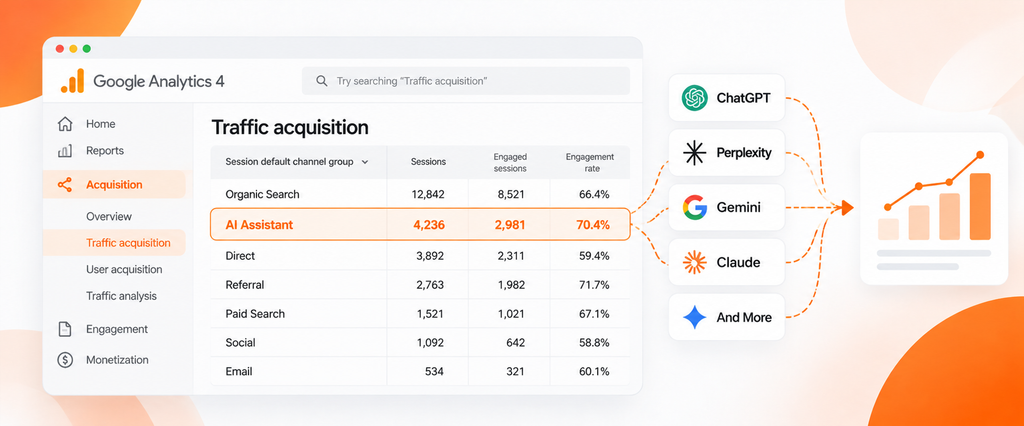
Here are five steps to track AI traffic in GA4 in a standard property. Menu labels shift a little between properties and updates, so I’ve flagged where.
Step 1: Open the Traffic Acquisition Report
- Open Google Analytics and choose your property.
- From the left menu: Reports, Acquisition, Traffic acquisition.
- Pick the last 90 days, because small channels need room to show up. If the report isn’t in your menu, Google says editors and administrators can add it back.
Step 2: Select the Correct Session Dimension
The first column’s drop down arrow switches the dimension.
- Session default channel group is the starting point. It carries the AI Assistant channel.
- Session source / medium shows the values behind the channels, which you need to tell one assistant from another.
- First user source / medium belongs in the User acquisition report. Reach for it when you’re asking which assistant brought in new people, not which one drove this visit.
Don’t mix session and user dimensions, or the totals will disagree.
Step 3: Find AI Referral Sources
- Start with Session default channel group and find the AI Assistant row. When the referrer matches Google’s assistant list, GA4 stamps the medium as
ai-assistant. - Click the plus icon next to the first column header and add Session source / medium as a secondary dimension. Rows like
chatgpt.com / ai-assistantshould appear under that channel. (Older data may showchatgpt.com / referral, according to Loves Data.) - Then make Session source / medium the first dimension and use the search box above the table, one term at a time:
chatgpt,openai,perplexity,gemini,claude,copilot. - Check the Referral and Unassigned rows too. An assistant missing from Google’s list can sit in Referral.
No AI Assistant row? Maybe nothing matched your date range. Or the channel hasn’t reached your property yet. Either way, the custom report further down doesn’t need it, so you can still track AI traffic in GA4.
Step 4: Compare AI Traffic Performance
Raw session counts mean little alone. Put each AI source next to Organic Search over the same dates:
- Sessions for volume.
- Engaged sessions and Engagement rate for quality. Google counts a session as engaged if it runs past 10 seconds, includes a key event, or has at least two page or screen views.
- Key events and Session key event rate for outcomes.
- Landing pages. Open Reports > Engagement > Landing page, click Add comparison, pick Session default channel group and match AI Assistant. Which pages do assistants send people to?
- Date ranges. Use the date picker’s compare option with equal lengths.
Small samples bite. Take 40 AI sessions: three or four visits move the rate ten points.
Step 5: Save or Reuse the Report
To track AI traffic in GA4 over time, save the view so you aren’t rebuilding it monthly. Three ways to do that, and the first two need editor access:
- Customize the report. In Traffic acquisition, use Customize report (the pencil icon), add a filter and save it as a new report. Analytics Mania walks through it.
- Create a detail report in the Library. Go to Reports > Library > Create new report > Create detail report and start from the Traffic acquisition template, as Loves Data documents.
- Build an Exploration. That’s next.
Which Sources Should You Look For When You Track AI Traffic in GA4?
Don’t trust any fixed list, including this one. AI products change links and referrer behavior without notice, and most don’t document it. So the table separates what’s documented from what’s only reported.
| AI service | Possible source or referrer pattern | How to verify | Important caveat |
|---|---|---|---|
| ChatGPT | chatgpt.com, with utm_source=chatgpt.com documented by OpenAI. Older chat.openai.com appears in practitioner lists | Search for chatgpt and openai, then inspect landing page URLs | OpenAI’s FAQ ties the tag to ChatGPT search results for sites that allow OAI-SearchBot. App visits are reportedly Direct |
| Perplexity | perplexity.ai as a referral (reported) | Search for perplexity | SearchPilot reports it, but Perplexity doesn’t document it. Its app reportedly splits between referral and Direct |
| Gemini | gemini.google.com (reported). SEJ reports that Gemini quietly added UTM parameters to outgoing links | Search for gemini, then check landing page URLs for tags | Google hasn’t documented the tags or values. The Gemini app reportedly shows as Direct more often |
| Claude | claude.ai, named in Google’s release notes | Search for claude | SearchPilot rates referrer reliability as low |
| Microsoft Copilot | copilot.microsoft.com, which appears in Google’s custom channel example | Search for copilot | Behavior depends on the surface, so test it |
| Google AI Overviews and AI Mode | google / organic | Search Console, since GA4 has no separate value | Google counts both in Organic Search, and AI Mode clicks often lack a referrer, per SearchPilot |
The table mixes three levels of certainty. A recognizable source value is something you can see in your own report. A possible referrer hostname is what practitioners have observed. A verified reporting dimension is a field Google documents, like Session source. Only the last is guaranteed.
The test I’d run: sort your Referral rows by sessions for the last 90 days and read every source name. Any assistant you don’t recognize is a candidate for your filter.
How to Build a Custom Report to Track AI Traffic in GA4
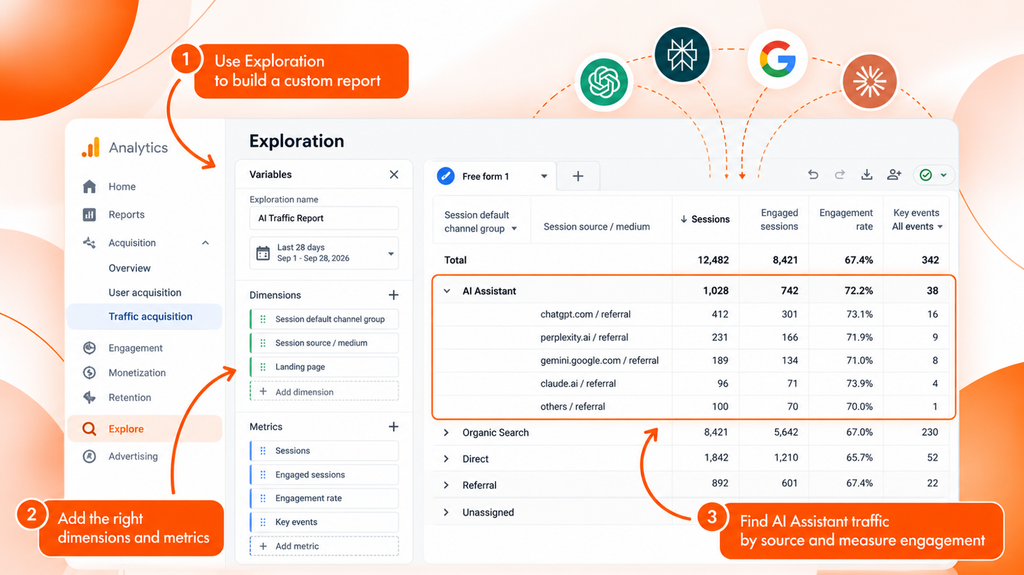
For flexibility, nothing beats an Exploration when you track AI traffic in GA4. Pick your own dimensions, add a filter, keep the result. It also catches assistants that the built in channel misses. Google’s free form guide sets the limits: up to 5 dimensions in rows, 2 in columns, 10 metrics in values, and filters that combine with AND logic.
- In the left menu, select Explore, then start a Blank or Free form exploration. Name it “AI traffic”.
- In the Variables column, click + next to Dimensions, tick Session source, Session source / medium and Landing page, then Import.
- Click + next to Metrics and import Sessions, Engaged sessions, Engagement rate, Key events and Session key event rate.
- In Tab Settings, drag Session source / medium into Rows and the metrics into Values.
- Under Filters, add Session source, choose matches regex and paste a pattern like this:
^(chatgpt\.com|chat\.openai\.com|perplexity\.ai|gemini\.google\.com|claude\.ai|copilot\.microsoft\.com|deepseek\.com|grok\.com)$- Click Apply. Then swap Session source / medium for Landing page in Rows to see where each group lands.
This pattern is my starting list, not an official one. Loves Data has an example it builds on, and Analytics Mania publishes a much longer one. Because of the anchors, chatgpt.com matches but www.chatgpt.com won’t. Add variants when they appear in your data.
A simpler filter also works. Set Session medium to exactly matches ai-assistant and you’ll see only what Google already classifies. Run both, and the gap shows what Google’s list misses.
To read the result, check which sources have meaningful volume, which landing pages get the visits, and whether engagement and key events hold up against Organic Search. Explorations only use data within your property’s retention settings, so their history can differ from standard reports.
How Do You Group AI Traffic in GA4 Into Its Own Channel?
You have three options, and they do different jobs.
| Option | What it does | Limit |
|---|---|---|
| Default AI Assistant channel | Classifies recognized assistants automatically | Google’s list isn’t fully published, and its release note doesn’t say whether older data was reclassified |
| Reporting filter (report or Exploration) | Narrows one view to chosen sources | Changes nothing anywhere else |
| Custom channel group | Adds your own channel and rules, reusable across reports | Two custom groups per standard property, and it needs editor access |
A filter is a lens. A GA4 custom channel group is a classification. Filter for ChatGPT in one report and every other report still shows it as before. A custom group applies your rules wherever you pick that group.
Can you track AI traffic in GA4 without a custom channel group? Yes, with filters. But a group is worth building when you want one definition across reports. Follow Google’s custom channel group steps:
- Go to Admin, then under Data display select Channel groups.
- Click Create new channel group and name it.
- Add a channel called “AI assistants” with a condition on Source that matches regex. In Google’s example, the regex covers OpenAI, ChatGPT, Gemini, Copilot and Perplexity domains.
- Click Reorder, drag the new channel above AI Assistant and Referral, and save.
Order matters. GA4 puts each session in the first channel whose rule fits. Google says custom groups apply to reports retroactively, and a standard property gets two.
Google also added a Source group field in 2026 that merges messy spellings of one source. Its release note names ChatGPT and Perplexity among the emerging sources it groups, so check whether your property shows it. And one more thing: a custom group can’t recover anything. All it does is sort visits that arrive with a source it recognizes.
How to Measure Conversions When You Track AI Traffic in GA4
Start with key events. Google’s page on key events explains that any event can be marked as one: a form submit or booked demo for lead generation, a purchase for a store. No key events, and all you’re counting is clicks.
Next, set the AI Assistant channel (or your custom group) beside Organic Search over equal date ranges. Sessions show volume, Engagement rate shows quality, Key events show total outcomes and Session key event rate gives a fair comparison between channels. Add Landing page to see which pages earn the AI click and which convert.
The formula for engagement rate is engaged sessions ÷ sessions × 100. With made up numbers, 260 engaged sessions out of 400 gives 65%. Google defines it as the percentage of engaged sessions, so the arithmetic is safe.
Two cautions. I wouldn’t assume AI visitors convert better or worse than organic ones. Check your own numbers. And on a longer sales cycle, look at Direct too, since someone who met you in an assistant may come back that way.
Why Can’t You Track AI Traffic in GA4 Completely?
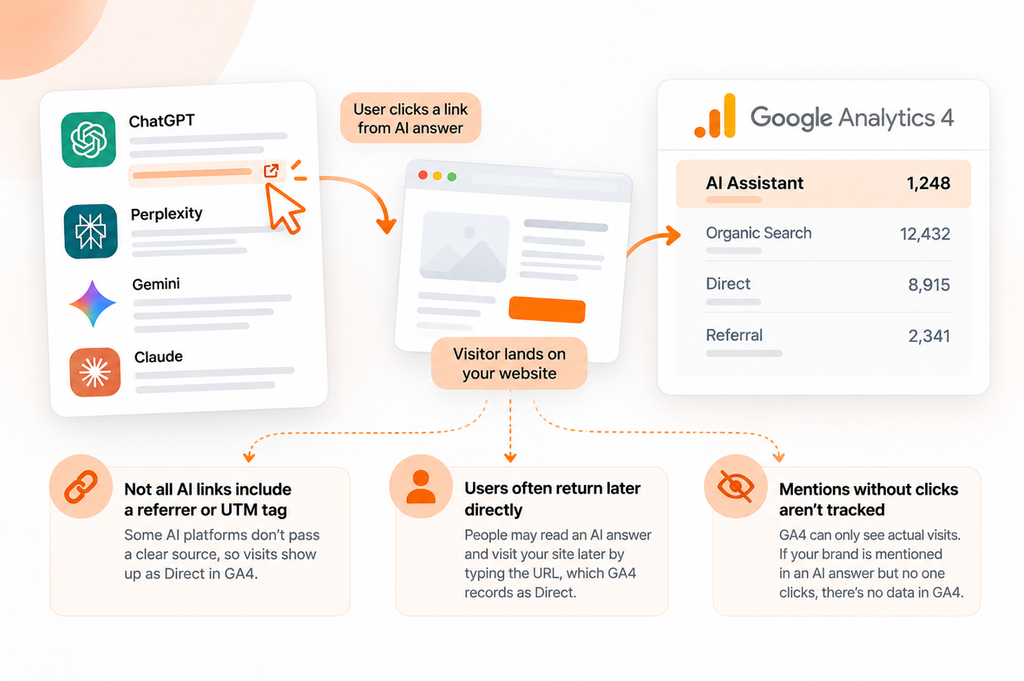
AI traffic attribution rests on a signal. GA4 reads it, then files the visit. No signal, and the visit goes to Direct, which Google describes as typed URLs and bookmarks. The main gaps:
- No click, or a pasted URL. Someone sees your brand in an answer and never clicks, or copies the address. A pasted URL has no referrer.
- Stripped referrers. Some apps and links opened with a no referrer setting pass nothing. SearchPilot says several AI apps show up as Direct.
- Privacy and consent. Some browsers and consent banners quietly limit what an analytics tag can collect.
- A later or different visit. The assistant introduced you, and the purchase came from a branded search a week later, or from another device.
- Crawlers. AI bots that fetch your pages usually don’t run your analytics tag. Server logs and the AI crawler checker guide cover that side.
A recent case shows how fragile the signal is. In 2026, after a ChatGPT model rollout, SEJ reported that ChatGPT attributed sessions fell sharply in several datasets while Direct rose, because links lost both the UTM tag and the referrer. SEJ says Adobe’s Cedric Huesler relayed that OpenAI called it a bug and that a fix began rolling out within days. OpenAI hadn’t published a statement, and several of the people quoted sell AI search tools, so take the percentages loosely. What matters is the lesson. Visitors didn’t vanish. They moved to Direct.
How Do You Track AI Traffic in GA4 When the Referrer Is Missing?
You can’t get that signal back. You can shrink the blind spots, though:
- Annotate changes. Mark dates when tracking behavior shifts, so a dip doesn’t read as lost demand.
- Watch Direct on deep pages. Direct visits landing on a specific article are less likely to be typed addresses.
- Ask people. Add “How did you hear about us?” to forms, with an AI assistant option. Self reported answers are rough, and they catch what GA4 can’t.
When Do UTM Parameters Help?
When you control the link. A newsletter, partner placement, social post or your own ad all let you pick the URL. Tag those and GA4 credits the source you choose. Google’s page on how traffic source dimensions are updated says that in some cases GA4 derives all cross channel values from UTMs exclusively, and that missing parameters produce (not set), so set source, medium and campaign together.
For links inside someone else’s AI answer, UTMs are no use if you want to track AI traffic in GA4. The assistant builds that URL, not you. If those visits carry a tag (utm_source=chatgpt.com, say), the AI product added it.
Two warnings. Don’t tag internal links. That can distort the original source. And skip the medium ai-assistant in your own campaigns, since Google’s channel rule matches that exact value.
GA4 AI Traffic Tracking vs. AI Visibility Tracking
These answer different questions. GA4 tells you what happened after a click. AI visibility tracking tells you whether your brand appeared in the answer at all.
| Measurement | What it answers | What it cannot tell you |
|---|---|---|
| GA4 AI referral traffic | How many identifiable visits came from AI sources, and what they did | Who saw your brand but didn’t click, or which prompt sent the visit |
| AI visibility monitoring | Whether answers mention or cite your brand, and who they name instead | How many visits or conversions followed |
| Server logs | Which bots and requests reached your site | Whether a human read an answer first |
Plenty of sites get mentioned all the time and still see few referral visits, since a lot of answers settle the question without anyone clicking. A session isn’t a citation. A citation isn’t a session either.
Spyro AI covers the visibility side. It checks whether ChatGPT, Gemini, Claude, Perplexity and Google AI Overviews mention or cite your brand (Pro and Agency plans cover all five), on a daily or weekly schedule you set. It isn’t a GA4 reporting tool, and this guide assumes no GA4 connection. For a quick baseline, the free AI Visibility Checker runs 5 buyer style prompts on ChatGPT and Google AI Overviews, and the post on the free AI visibility checker explains how to read the report. If you’re weighing tools, the AI visibility tools pricing comparison lays out what plans include.
Common Mistakes When You Track AI Traffic in GA4
Most skewed numbers trace back to a few repeat errors when people track AI traffic in GA4.
| Mistake | Why it hurts | Fix |
|---|---|---|
| Treating every AI influenced visit as a referral | You undercount and misjudge impact | Report referrals as a floor |
| Counting all Direct as AI | You overstate it | Look at deep landing pages and trends only |
| Putting UTMs on links you don’t control | Tags on internal links distort sources | Tag only links you publish |
| Ignoring conversions and landing pages | Traffic without outcomes proves little | Compare key events |
| Comparing uneven date ranges | Trends look bigger or smaller than they are | Use equal periods |
Key Takeaways
- To track AI traffic in GA4, start with Session default channel group in Traffic acquisition, find the AI Assistant row, then break it down by Session source / medium.
- Google’s AI Assistant channel only covers referrers it recognizes, and the full list isn’t published. So test each assistant you care about before you track AI traffic in GA4 with it.
- A saved Exploration or custom channel group catches assistants the default misses. A filter changes one view; a channel group changes how traffic gets classified.
- Referral sessions are a floor. Copy and paste, apps, stripped referrers and later visits through other channels push AI influence into Direct.
- Prompts, answers and citations are invisible to GA4. Visibility monitoring handles those. GA4 picks up once the visitor has clicked.
Frequently Asked Questions
How do I track AI traffic in GA4?
Open Reports > Acquisition > Traffic acquisition, set the dimension to Session default channel group and read the AI Assistant row. Add Session source / medium to see each assistant, then build a filtered Exploration for sources Google doesn’t classify.
Can GA4 track ChatGPT traffic?
ChatGPT traffic in GA4 shows up for clicks that arrive with a referrer or a tag. Per OpenAI, ChatGPT appends utm_source=chatgpt.com to the referral URLs it shows in search results. App visits and links without either signal usually land in Direct.
Can GA4 track Perplexity and Gemini traffic?
Often, with caveats. Perplexity referral traffic is reported to arrive as perplexity.ai, and Gemini as gemini.google.com, so you can track AI traffic in GA4 from both, though neither owner formally documents it. Check your own source report, and expect some mobile app visits to show as Direct.
Why is AI traffic showing as direct traffic in GA4?
Because the click carried no referrer and no tag. Copied URLs, some apps and links opened with a no referrer setting all do this, and GA4 files them as Direct. Watch Direct visits to deep pages as a rough proxy, and annotate any date when tracking behavior changed.
Can I create a separate AI traffic channel in GA4?
Yes. GA4 has a default AI Assistant channel for recognized referrers. You can also track AI traffic in GA4 as your own channel with a custom channel group (Admin > Data display > Channel groups) that uses a Source regex and sits above Referral.
Is AI referral traffic the same as AI visibility, and do I need another tool?
No, and for most teams yes. Referral traffic counts identifiable visits. Visibility measures whether and how your brand appears in answers, including when nobody clicks. GA4 can’t show prompts, mentions or citations, so pair it with AI visibility monitoring.
How can I measure conversions from AI search?
First mark your important actions as key events. Once you track AI traffic in GA4, put the AI Assistant channel next to Organic Search over equal date ranges and compare Engagement rate, Key events and Session key event rate. Add Landing page to see which pages convert. Small samples need care, and later direct visits won’t be credited to the assistant.
Measure the Click, Then Check the Mention
Here’s the workflow I’d follow. Read the AI Assistant row, build one Exploration for the assistants Google misses, compare engagement and key events with Organic Search and annotate changes. Then accept that you’re seeing the clicks, not the whole influence.
To see the other half, run the free AI Visibility Checker and find out whether ChatGPT and Google AI Overviews mention your brand at all. It’s a baseline, not a guarantee. When you want to keep tracking more prompts and engines over time, the plans are on the pricing page. And if you want to track AI traffic in GA4 well, repeat the checks above every month, not once.