> ## Documentation Index
> Fetch the complete documentation index at: https://spyro.app/docs/llms.txt
> Use this file to discover all available pages before exploring further.
# Team members
> Invite teammates by email, understand roles in plain terms, accept an invite, and remove people - how to work together in Spyro.
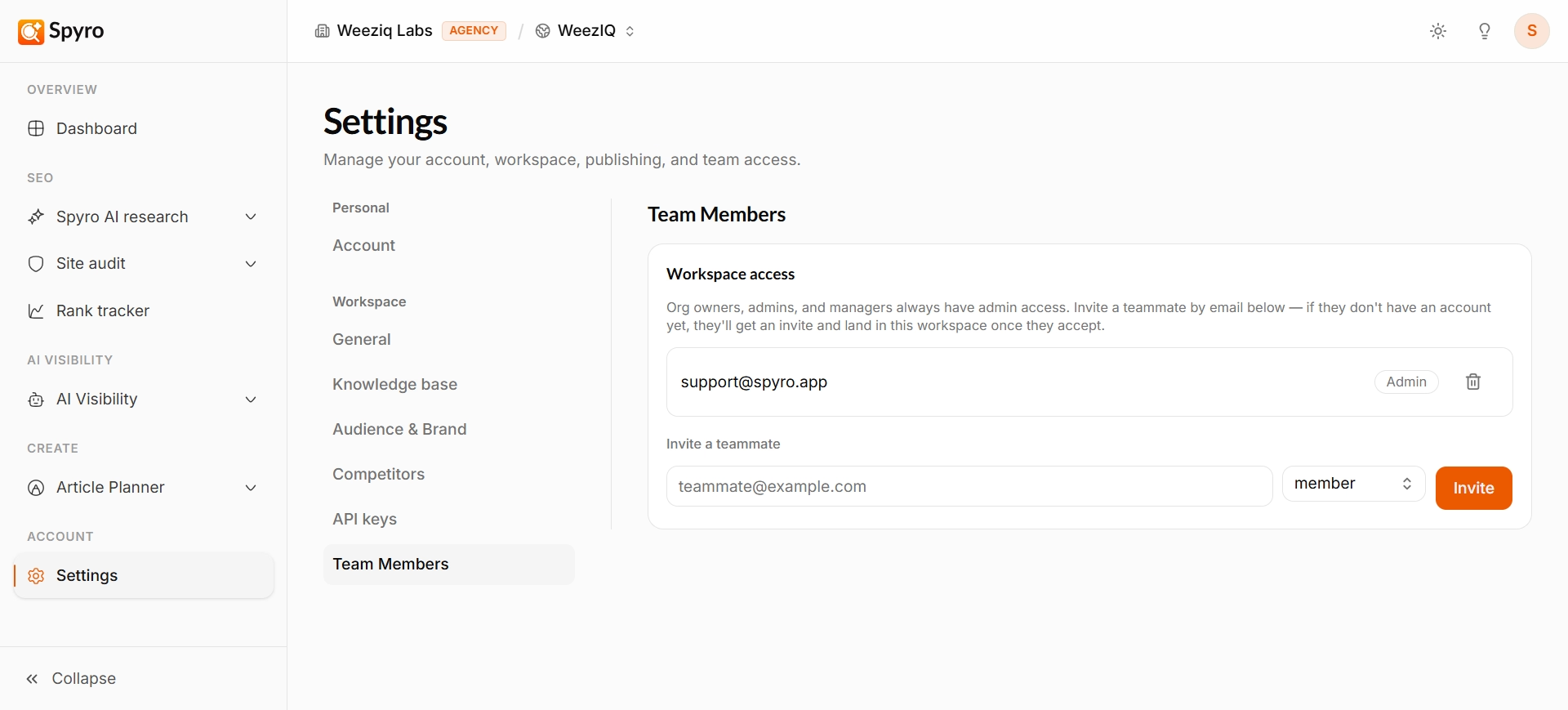 Spyro is built for teams. You invite people by email, choose what they can do, and decide which of your websites they can work on. This page walks through the whole thing.
## Why use it
Bring in writers, marketers, or clients so they can pitch in - without handing over the keys to everything. You decide who manages the account and who just works on the sites you assign them.
## Roles in plain terms
There are two simple kinds of people on your team:
* **Owners and admins** can manage everything - settings, billing, content, and the team itself, across every website.
* **Members** get access only to the websites you assign them. They work on those sites and nothing else.
There is one **owner** per account. Only the owner can change your plan, manage billing, or hand the account over to someone else.
## Inviting teammates
Go to **Settings** in the sidebar and find the team or members section.
Type a teammate's email and choose whether they can manage everything or just the sites you give them.
Spyro emails them a link. You can also copy the link and share it yourself.
Invite someone to a **single website** when they only need to work on one site. Invite them to the **whole account** when you want them across everything.
## Accepting an invite
If you're the person being invited, here's all it takes:
Click the invite link in your email.
Use the **same email address the invite was sent to**. A forwarded link won't work for a different account. If you don't have a Spyro account yet, you'll create one first.
You're dropped straight into the workspace you've been given access to.
Invites expire after **14 days**. If a link has expired, just ask for a fresh one.
## Changing roles and removing people
* **Change a role** - pick a new role from the dropdown next to a teammate.
* **Remove someone from a website** - unassign them from just that site; they keep access to anything else they were given.
* **Remove someone from the account** - remove them entirely so they can't reach anything.
* **Cancel an invite** - revoke any invite that hasn't been accepted yet.
The owner can't be removed or changed. Only owners and admins manage the team.
## Related
Spyro is built for teams. You invite people by email, choose what they can do, and decide which of your websites they can work on. This page walks through the whole thing.
## Why use it
Bring in writers, marketers, or clients so they can pitch in - without handing over the keys to everything. You decide who manages the account and who just works on the sites you assign them.
## Roles in plain terms
There are two simple kinds of people on your team:
* **Owners and admins** can manage everything - settings, billing, content, and the team itself, across every website.
* **Members** get access only to the websites you assign them. They work on those sites and nothing else.
There is one **owner** per account. Only the owner can change your plan, manage billing, or hand the account over to someone else.
## Inviting teammates
Go to **Settings** in the sidebar and find the team or members section.
Type a teammate's email and choose whether they can manage everything or just the sites you give them.
Spyro emails them a link. You can also copy the link and share it yourself.
Invite someone to a **single website** when they only need to work on one site. Invite them to the **whole account** when you want them across everything.
## Accepting an invite
If you're the person being invited, here's all it takes:
Click the invite link in your email.
Use the **same email address the invite was sent to**. A forwarded link won't work for a different account. If you don't have a Spyro account yet, you'll create one first.
You're dropped straight into the workspace you've been given access to.
Invites expire after **14 days**. If a link has expired, just ask for a fresh one.
## Changing roles and removing people
* **Change a role** - pick a new role from the dropdown next to a teammate.
* **Remove someone from a website** - unassign them from just that site; they keep access to anything else they were given.
* **Remove someone from the account** - remove them entirely so they can't reach anything.
* **Cancel an invite** - revoke any invite that hasn't been accepted yet.
The owner can't be removed or changed. Only owners and admins manage the team.
## Related