> ## Documentation Index
> Fetch the complete documentation index at: https://spyro.app/docs/llms.txt
> Use this file to discover all available pages before exploring further.
# Google Search Console
> Connect Google Search Console so Spyro can show your real Google search performance - clicks, impressions, your best pages and queries, and quick wins you can act on.
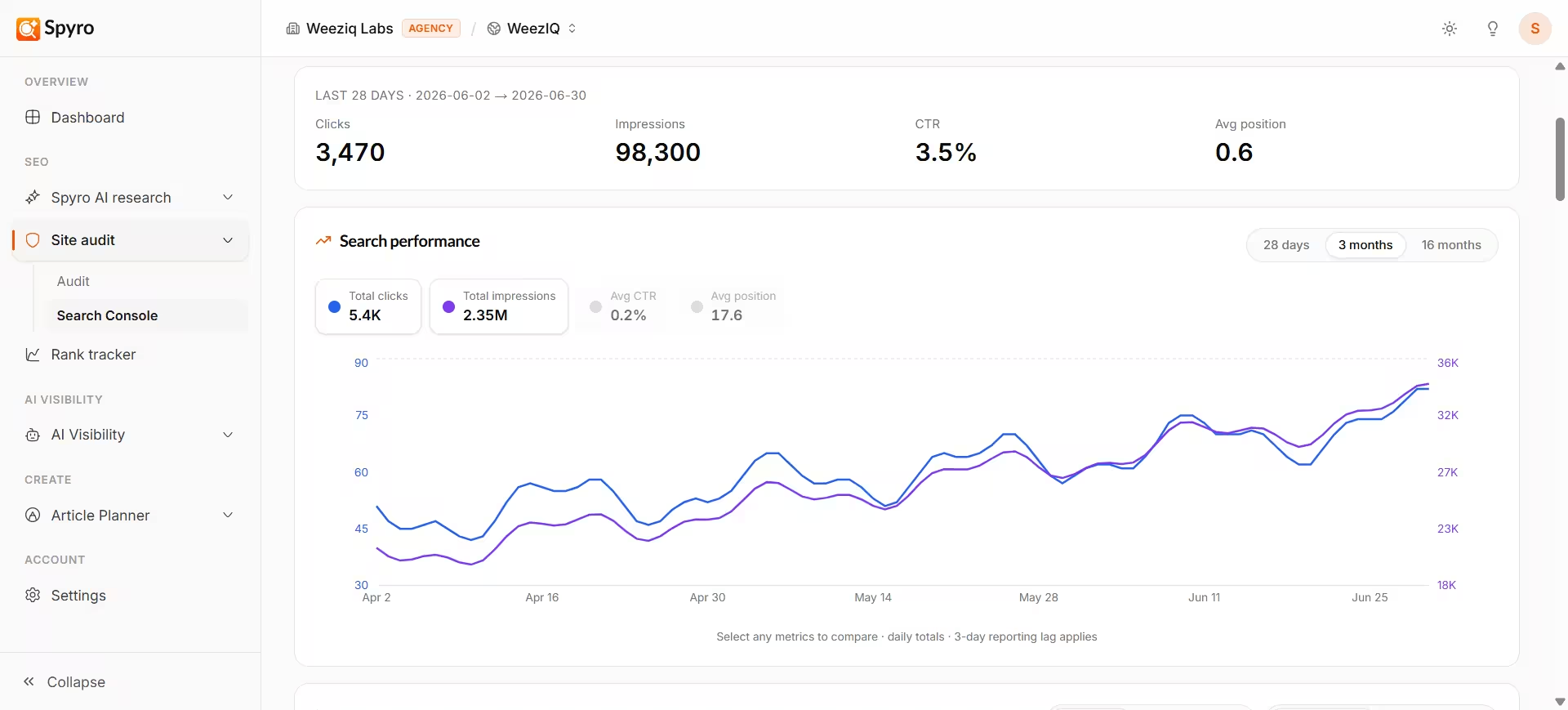 When you connect **Google Search Console**, Spyro starts working from your *real* Google search data instead of guesses. You get to see exactly how people find you on Google - how many clicks and impressions you get, which pages and search terms bring them in, and where there are easy wins waiting for you.
It's a free Google tool, and connecting it takes about a minute.
## Why connect it
Actual clicks, impressions, click-through rate, and average position - not estimates.
See which pages and search queries are already bringing you traffic.
Find pages that are almost ranking, or that lots of people see but few click.
Follow how your Google performance changes over the weeks and months.
## How to connect it
In the sidebar, open **Search Console**, then click **Connect Google Search Console**.
Spyro sends you to Google's sign-in screen. Sign in with the Google account that owns your website, and approve the request. Spyro only *reads* your data - it can't change anything in your Google account.
Google shows the sites your account can access. Choose the one that matches the website you're working on, and confirm. Tip: if a site doesn't match your workspace, Spyro warns you - pick the one for the site you're tracking.
Spyro starts pulling in your performance. You'll see a short "import queued" message, then your numbers appear once they finish loading. Refresh after a minute or two.
## What to expect
Once connected, Search Console gives you a clear picture of your Google performance:
* **Your headline numbers** for the last 28 days - clicks, impressions, click-through rate, and average position.
* **Trend charts** so you can watch each number rise or fall over time.
* **Top pages and top queries** - the pages and search terms bringing you the most clicks right now.
* **Quick-win suggestions** that pair your search data with your latest [site audit](/docs/product/audit), such as:
* **Low click-through** - a page lots of people see but few click. Usually a better title or description fixes it.
* **Almost ranking** - pages sitting just off page one. A little more content or a few internal links can push them up.
* **Slipping pages** - pages that used to get more clicks and now need a refresh.
Each suggestion comes with a simple, step-by-step plan you can follow.
Support for **Google Analytics (GA4)** is coming soon. Once it's ready, you'll be able to see your AI-driven traffic right alongside your Search Console data.
## Tips
* Connect Search Console early - the sooner it's linked, the more history Spyro can show you.
* Choose the site that exactly matches your workspace so the suggestions line up with your pages.
* After you fix something, check back in Google Search Console to confirm the improvement - Spyro only reads your data, so you confirm the result there.
## Related
When you connect **Google Search Console**, Spyro starts working from your *real* Google search data instead of guesses. You get to see exactly how people find you on Google - how many clicks and impressions you get, which pages and search terms bring them in, and where there are easy wins waiting for you.
It's a free Google tool, and connecting it takes about a minute.
## Why connect it
Actual clicks, impressions, click-through rate, and average position - not estimates.
See which pages and search queries are already bringing you traffic.
Find pages that are almost ranking, or that lots of people see but few click.
Follow how your Google performance changes over the weeks and months.
## How to connect it
In the sidebar, open **Search Console**, then click **Connect Google Search Console**.
Spyro sends you to Google's sign-in screen. Sign in with the Google account that owns your website, and approve the request. Spyro only *reads* your data - it can't change anything in your Google account.
Google shows the sites your account can access. Choose the one that matches the website you're working on, and confirm. Tip: if a site doesn't match your workspace, Spyro warns you - pick the one for the site you're tracking.
Spyro starts pulling in your performance. You'll see a short "import queued" message, then your numbers appear once they finish loading. Refresh after a minute or two.
## What to expect
Once connected, Search Console gives you a clear picture of your Google performance:
* **Your headline numbers** for the last 28 days - clicks, impressions, click-through rate, and average position.
* **Trend charts** so you can watch each number rise or fall over time.
* **Top pages and top queries** - the pages and search terms bringing you the most clicks right now.
* **Quick-win suggestions** that pair your search data with your latest [site audit](/docs/product/audit), such as:
* **Low click-through** - a page lots of people see but few click. Usually a better title or description fixes it.
* **Almost ranking** - pages sitting just off page one. A little more content or a few internal links can push them up.
* **Slipping pages** - pages that used to get more clicks and now need a refresh.
Each suggestion comes with a simple, step-by-step plan you can follow.
Support for **Google Analytics (GA4)** is coming soon. Once it's ready, you'll be able to see your AI-driven traffic right alongside your Search Console data.
## Tips
* Connect Search Console early - the sooner it's linked, the more history Spyro can show you.
* Choose the site that exactly matches your workspace so the suggestions line up with your pages.
* After you fix something, check back in Google Search Console to confirm the improvement - Spyro only reads your data, so you confirm the result there.
## Related