> ## Documentation Index
> Fetch the complete documentation index at: https://spyro.app/docs/llms.txt
> Use this file to discover all available pages before exploring further.
# Tracking prompts
> Set up the buyer questions Spyro asks ChatGPT, Gemini, Claude, Perplexity and Google AI Overviews every week - then see how often they mention you.
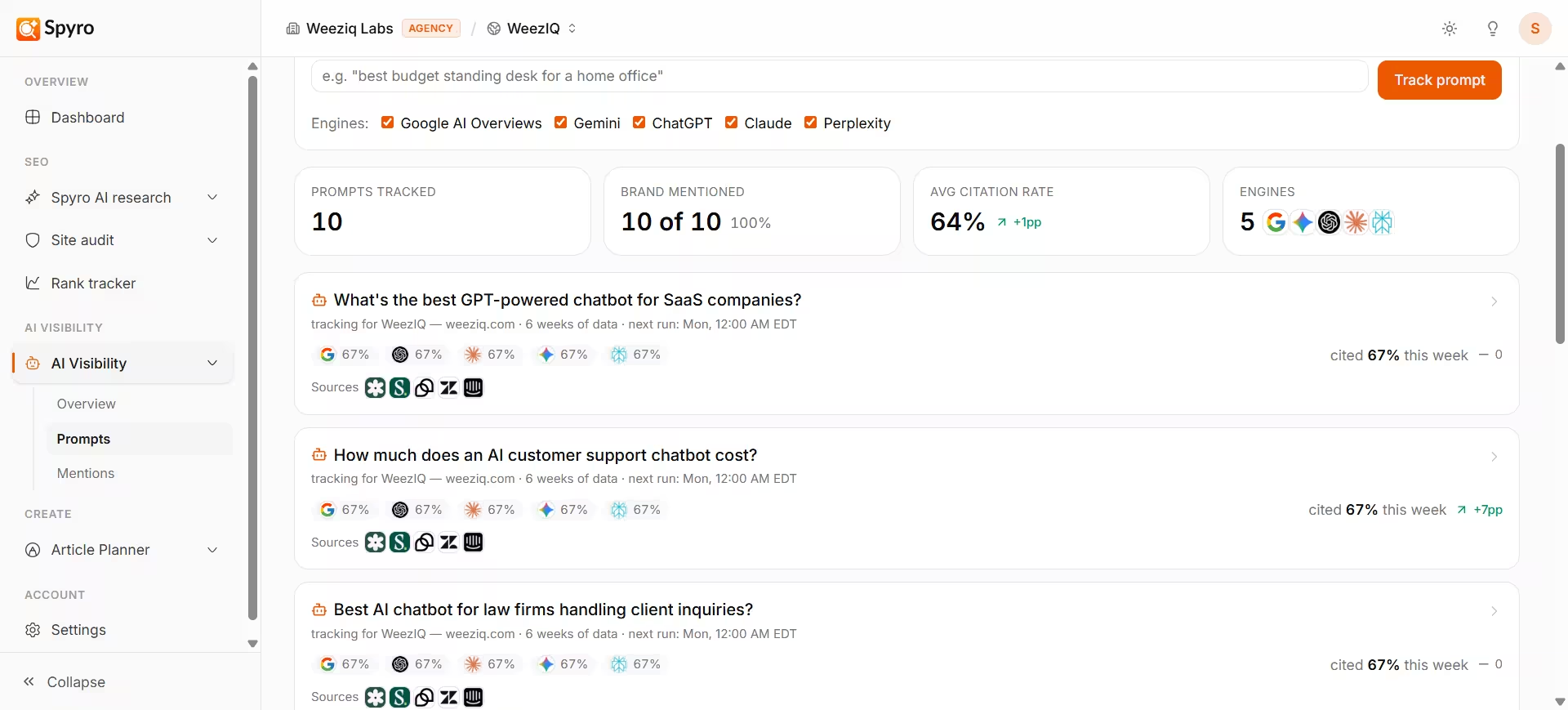 A **tracking prompt** is a real buyer question - the kind a customer would actually type into an AI assistant, like *"best budget standing desk for a home office."* Every week, Spyro asks the AI assistants your prompts and records how often the answers mention you.
Prompts are the starting point for [AI visibility](/docs/product/ai-visibility): the questions you set here are what everything else measures. The trick is to ask the way a customer would - never your own brand name - because the whole point is to see whether AI recommends you on its own.
## Why use it
Track the real questions your customers ask AI before they buy.
Decide which AI assistants Spyro checks for each question.
Each prompt shows the competitor sites the assistants mention.
Watch how often you're mentioned for each question over time.
## You start with suggestions
You don't begin with a blank page. When you first set up Spyro during [onboarding](/docs/product/onboarding), it suggests a starter set of buyer questions based on your website and competitors. They cover a natural mix - recommendations, comparisons, and how-to questions - and you can review or edit them before they go live.
## How to add and manage prompts
In the sidebar, open **Tracking prompts** (part of AI visibility).
Use the **Add prompt** box and phrase it the way a real customer would - for example, `best budget standing desk for a home office`. Don't include your own brand name.
Tick which assistants should answer this question - **ChatGPT, Gemini, Claude, Perplexity, and Google AI Overviews**. They're all selected by default.
Click **Track prompt**. It runs once right away so you get a first result, then re-checks automatically every week.
To change a question later, edit it from its card. You can **pause** a prompt to stop checking it, or **delete** it to remove it for good. (Deleting also erases that prompt's history, so pause instead if you might want it back.)
## Reading your results
Each prompt appears as a card showing how it's doing this week:
* **How often you're mentioned** - your mention rate for that question this week.
* **The trend** - whether you're up or down compared with last week.
* **Per-assistant results** - how you did on each AI assistant you picked.
* **Competitor sites** - the rival domains the assistants mentioned for this question. This is a quick way to see who you're competing against.
Open any prompt to see its full history - how each assistant's results have moved over time, your top competitor for that question, and the most recent answers that mentioned you.
## What to expect
* Results are shown as a frequency, like **"mentioned in 3 of 5 checks,"** because AI answers vary each time.
* Your first result appears the moment you add a prompt; after that, Spyro re-checks every week automatically.
* The trend needs a couple of weeks of data before it means much.
## Tips
* Keep prompts in your customer's words. If it sounds like an SEO keyword, rewrite it as a natural question.
* Use the competitor sites on each card to spot rivals worth studying over on [AI visibility](/docs/product/ai-visibility).
* To read the exact wording of an answer, jump to [AI mentions](/docs/product/ai-mentions).
## Related
A **tracking prompt** is a real buyer question - the kind a customer would actually type into an AI assistant, like *"best budget standing desk for a home office."* Every week, Spyro asks the AI assistants your prompts and records how often the answers mention you.
Prompts are the starting point for [AI visibility](/docs/product/ai-visibility): the questions you set here are what everything else measures. The trick is to ask the way a customer would - never your own brand name - because the whole point is to see whether AI recommends you on its own.
## Why use it
Track the real questions your customers ask AI before they buy.
Decide which AI assistants Spyro checks for each question.
Each prompt shows the competitor sites the assistants mention.
Watch how often you're mentioned for each question over time.
## You start with suggestions
You don't begin with a blank page. When you first set up Spyro during [onboarding](/docs/product/onboarding), it suggests a starter set of buyer questions based on your website and competitors. They cover a natural mix - recommendations, comparisons, and how-to questions - and you can review or edit them before they go live.
## How to add and manage prompts
In the sidebar, open **Tracking prompts** (part of AI visibility).
Use the **Add prompt** box and phrase it the way a real customer would - for example, `best budget standing desk for a home office`. Don't include your own brand name.
Tick which assistants should answer this question - **ChatGPT, Gemini, Claude, Perplexity, and Google AI Overviews**. They're all selected by default.
Click **Track prompt**. It runs once right away so you get a first result, then re-checks automatically every week.
To change a question later, edit it from its card. You can **pause** a prompt to stop checking it, or **delete** it to remove it for good. (Deleting also erases that prompt's history, so pause instead if you might want it back.)
## Reading your results
Each prompt appears as a card showing how it's doing this week:
* **How often you're mentioned** - your mention rate for that question this week.
* **The trend** - whether you're up or down compared with last week.
* **Per-assistant results** - how you did on each AI assistant you picked.
* **Competitor sites** - the rival domains the assistants mentioned for this question. This is a quick way to see who you're competing against.
Open any prompt to see its full history - how each assistant's results have moved over time, your top competitor for that question, and the most recent answers that mentioned you.
## What to expect
* Results are shown as a frequency, like **"mentioned in 3 of 5 checks,"** because AI answers vary each time.
* Your first result appears the moment you add a prompt; after that, Spyro re-checks every week automatically.
* The trend needs a couple of weeks of data before it means much.
## Tips
* Keep prompts in your customer's words. If it sounds like an SEO keyword, rewrite it as a natural question.
* Use the competitor sites on each card to spot rivals worth studying over on [AI visibility](/docs/product/ai-visibility).
* To read the exact wording of an answer, jump to [AI mentions](/docs/product/ai-mentions).
## Related