> ## Documentation Index
> Fetch the complete documentation index at: https://spyro.app/docs/llms.txt
> Use this file to discover all available pages before exploring further.
# Your dashboard
> Your home base in Spyro - see your SEO and AI-visibility scores, recent activity, and AI mentions at a glance, with quick links to every tool.
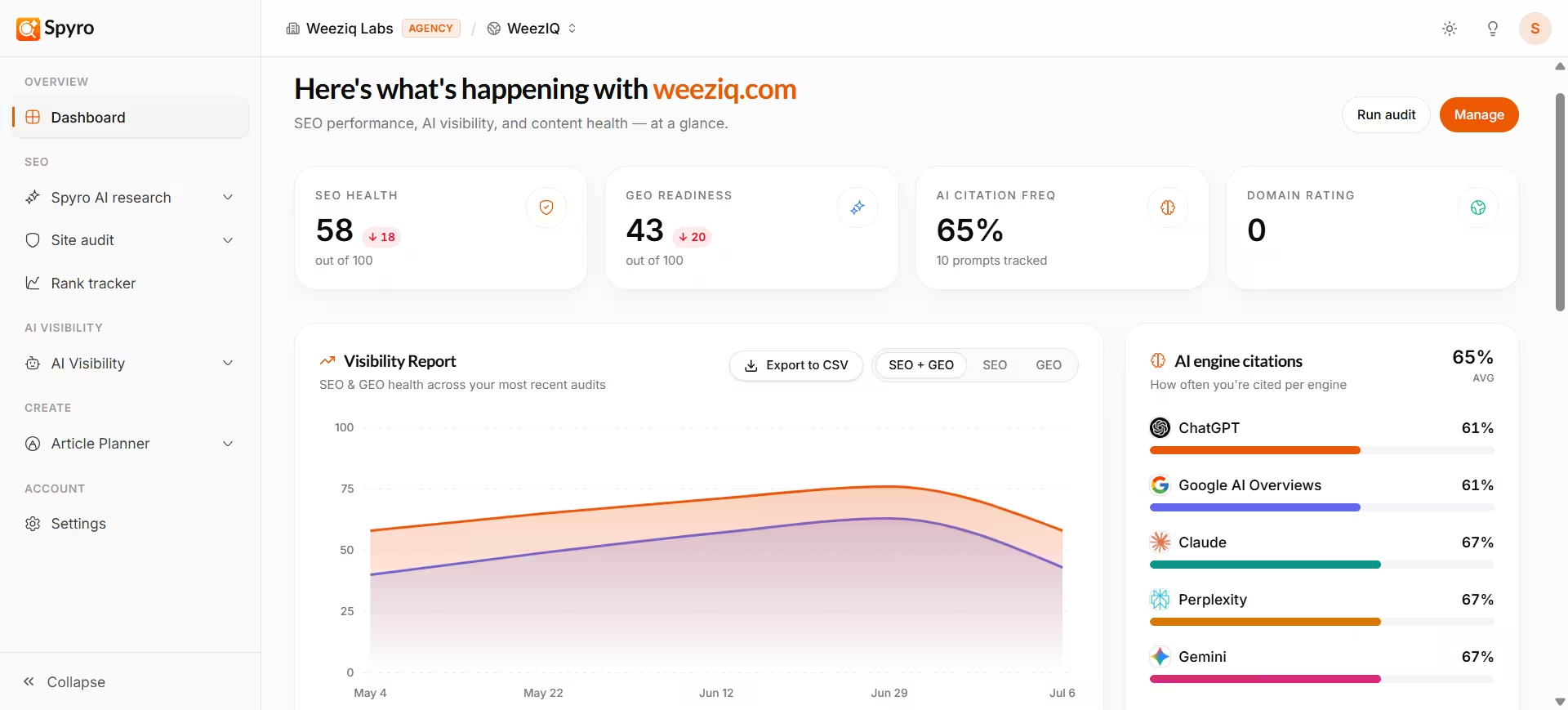 The dashboard is your home base for one website. It answers a single question - *how is my site doing?* - across search rankings, AI visibility, and content. Most cards also link straight to the tool behind them, so you can jump in with one click.
At the top, you'll see your website name and two quick buttons: **Run audit** and **Manage** (your workspace settings).
## Why use it
Instead of opening every tool to check on things, the dashboard pulls the highlights into one screen. A quick look tells you whether your scores are going up, which keywords are moving, and whether AI assistants are mentioning you. Use it as your starting point each time you log in.
## What you'll see
Your **SEO health** and **AI readiness** scores, each out of 100, with a small up-or-down trend once you've run more than one audit.
How often AI assistants mention you when answering buyer questions, plus your **domain rating** (a measure of your site's authority).
A chart of your scores across recent audits, so you can see the direction you're heading - not just today's number.
A bar for each AI assistant (ChatGPT, Gemini, Perplexity, Claude) showing how often each one cites your site.
Your Google clicks and impressions for the last 28 days, with the change versus the month before. Links to [Search Console](/docs/product/search-console).
The keywords that moved the most since the last check - gains in green, drops in red. Links to the [rank tracker](/docs/product/rank-tracker).
### Recent AI mentions
When an AI assistant cites your site in an answer, the latest few show up as cards here - each with the assistant, the date, how positive the mention was, and a snippet of what it said. Tap a card to read the full mention, or choose **See all** to open the [AI mentions feed](/docs/product/ai-mentions).
## What to expect on your first login
A brand-new workspace starts mostly empty - and that's normal. Your scores show a dash (`-`) and several panels invite you to get started. Everything fills in on its own as Spyro finishes its work:
Your SEO and AI-readiness scores and the visibility chart appear.
The AI citation rate and recent mentions begin to fill in.
Your search performance card shows real clicks and impressions.
The rank movers card starts showing where your keywords are moving.
Right after setup, you may also see a status banner while Spyro looks over your site for the first time. It disappears automatically once your workspace is ready.
## Related
The dashboard is your home base for one website. It answers a single question - *how is my site doing?* - across search rankings, AI visibility, and content. Most cards also link straight to the tool behind them, so you can jump in with one click.
At the top, you'll see your website name and two quick buttons: **Run audit** and **Manage** (your workspace settings).
## Why use it
Instead of opening every tool to check on things, the dashboard pulls the highlights into one screen. A quick look tells you whether your scores are going up, which keywords are moving, and whether AI assistants are mentioning you. Use it as your starting point each time you log in.
## What you'll see
Your **SEO health** and **AI readiness** scores, each out of 100, with a small up-or-down trend once you've run more than one audit.
How often AI assistants mention you when answering buyer questions, plus your **domain rating** (a measure of your site's authority).
A chart of your scores across recent audits, so you can see the direction you're heading - not just today's number.
A bar for each AI assistant (ChatGPT, Gemini, Perplexity, Claude) showing how often each one cites your site.
Your Google clicks and impressions for the last 28 days, with the change versus the month before. Links to [Search Console](/docs/product/search-console).
The keywords that moved the most since the last check - gains in green, drops in red. Links to the [rank tracker](/docs/product/rank-tracker).
### Recent AI mentions
When an AI assistant cites your site in an answer, the latest few show up as cards here - each with the assistant, the date, how positive the mention was, and a snippet of what it said. Tap a card to read the full mention, or choose **See all** to open the [AI mentions feed](/docs/product/ai-mentions).
## What to expect on your first login
A brand-new workspace starts mostly empty - and that's normal. Your scores show a dash (`-`) and several panels invite you to get started. Everything fills in on its own as Spyro finishes its work:
Your SEO and AI-readiness scores and the visibility chart appear.
The AI citation rate and recent mentions begin to fill in.
Your search performance card shows real clicks and impressions.
The rank movers card starts showing where your keywords are moving.
Right after setup, you may also see a status banner while Spyro looks over your site for the first time. It disappears automatically once your workspace is ready.
## Related