> ## Documentation Index
> Fetch the complete documentation index at: https://spyro.app/docs/llms.txt
> Use this file to discover all available pages before exploring further.
# Competitor Research
> Run keyword gap scans against your competitors, see where they outrank you, and find content opportunities - all from one dashboard.
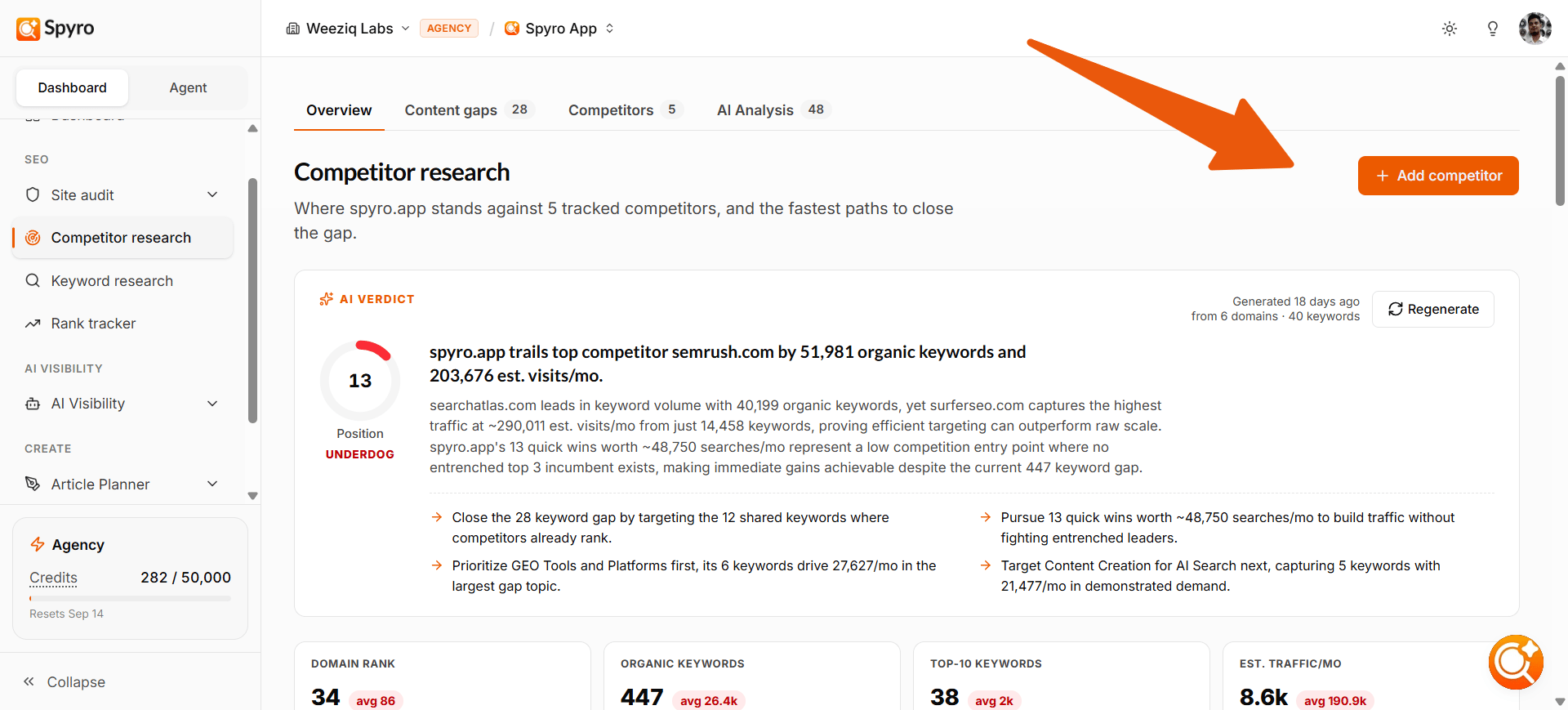 Competitor Research lets you compare your website against up to 5 competitors in a single scan. Spyro pulls keyword ranking data for each domain, builds a side-by-side comparison, and shows you exactly which keywords your competitors rank for that you don't - plus where you share ground and where you have quick wins. You can run additional scans later with another set of up to 5 competitor domains.
## Where to find it
Open **Competitor research** from the sidebar inside any workspace. The dashboard has four tabs: **Overview**, **Content gaps**, **Competitors**, and **AI Analysis**.
## Running a scan
### What you enter
When you start a new scan, you'll set up the following:
* **Your domain** — pulled automatically from your workspace settings. This is excluded from the competitor list.
* **Competitor domains** — enter **1 to 5** domains you want to compare against.
* **Location** — the country or region to check rankings in.
* **Language** — the language to check rankings in.
* **Competitor ranking position** — how deep into search results to look: top 10, 20, 50, or 100 positions.
* **Minimum search volume** — optionally filter out very low-volume keywords.
* **Maximum keyword difficulty** — optionally cap results by difficulty score (1-100).
* **Include subdomains** — choose whether to include subdomains in the analysis.
Your own domain is automatically excluded from the competitor list. You cannot add it as a competitor.
### Credit cost
Each competitor domain costs **150 credits**. For example, scanning 3 competitors uses 450 credits.
Spyro checks that you have enough credits before the scan starts. If you don't have enough, the scan is blocked and you'll see a message explaining how many credits you need and how many you have left.
Credits are charged only after a scan completes successfully. If a scan fails, you are not charged.
See [Plans & billing](/docs/product/billing-and-usage) for the full list of credit costs and your plan's monthly credit pool.
### What happens while the scan runs
The scan runs in the background. You can close the page and come back later - your results will appear when the scan finishes. When the scan finishes, the **Overview** tab loads automatically.
## Overview results
The Overview tab shows a high-level comparison of your domain versus each competitor:
* **Domain rank** — how each domain compares overall.
* **Organic keywords** — total keywords each domain ranks for.
* **Top-10 keywords** — how many keywords each domain ranks in the top 10.
* **Estimated traffic/month** — estimated monthly organic traffic for each domain.
* **AI verdict** — an AI-generated summary of the competitive landscape.
* **Topic-gap cluster cards** — highlight areas where competitors outrank you, linking directly into the Content gaps view.
## Content gaps
Click the **Content gaps** tab to see the full keyword-level comparison. This is where you'll spend most of your time planning content.
### Gaps, Shared, and Quick wins
Results are split into three bucket tabs:
* **Gaps** — keywords at least one competitor ranks for that you don't rank for at all.
* **Shared** — keywords both you and your competitors rank for.
* **Quick wins** — gap keywords where at least one competitor ranks in the top 10 and you rank lower or not at all. These are your highest-priority opportunities.
### Topic clusters
Spyro uses AI to group gap keywords into topic clusters, helping you plan content around themes rather than individual keywords. Clusters only form when there are at least 8 gap keywords, and up to 6 clusters are shown. Click a cluster chip to filter the keyword table to that topic.
### Keyword table
The keyword table shows detailed data for every keyword in the scan:
| Column | What it means |
| ------------------------ | --------------------------------------------------------------------- |
| Keyword | The search term |
| Volume | Monthly search volume |
| CPC | Cost per click (indicates commercial intent) |
| Difficulty | How hard it is to rank for this keyword |
| Intent | What the searcher is looking for (informational, transactional, etc.) |
| Your rank | Where you rank, or blank if you don't rank |
| Competitor ranks | Where each competitor ranks |
| Best competitor position | The highest rank any competitor holds |
| Best competitor URL | The competitor page that ranks highest |
### Write article
Click **Write article** on any keyword row to jump straight to the AI writer with that keyword pre-filled. This is the fastest way to turn a gap into content.
### Track keyword
Click **Track keyword** to add any keyword from the table to your [rank tracker](/docs/product/rank-tracker) so you can monitor whether your new content closes the gap.
### Export to CSV
Click **Export to CSV** to download the full keyword table for offline analysis, reporting, or sharing with your team.
## Competitors tab
The **Competitors** tab shows profile cards for each competitor in the scan, including their headline metrics and how they compare to you at a glance.
## AI Analysis tab
The **AI Analysis** tab provides an AI-generated synthesis of the scan results, summarizing the most important findings and strategic takeaways from the competitive comparison.
## When you don't have enough credits
If your credit balance is too low to cover the scan, Spyro blocks the scan before it starts and shows you:
* How many credits the scan would cost.
* How many credits you have remaining.
You can upgrade your plan or wait for your monthly credit reset. See [Plans & billing](/docs/product/billing-and-usage) for options.
## Error and empty states
* **No scan yet** — when you first open Competitor Research, you'll see an empty state with a prompt to start your first scan.
* **Scan failed** — if a scan fails (for example, due to a temporary data issue), you'll see an error message. You are **not** charged credits for failed scans.
## Limits
| Limit | Value |
| ---------------------------- | --------------- |
| Competitors per scan | up to **5** |
| Keyword rows stored per scan | up to **2,000** |
| Topic clusters shown | up to **6** |
## Related
See the bigger picture of competitor tracking in Spyro.
Credit costs, plans, and how credits reset.
Competitor Research lets you compare your website against up to 5 competitors in a single scan. Spyro pulls keyword ranking data for each domain, builds a side-by-side comparison, and shows you exactly which keywords your competitors rank for that you don't - plus where you share ground and where you have quick wins. You can run additional scans later with another set of up to 5 competitor domains.
## Where to find it
Open **Competitor research** from the sidebar inside any workspace. The dashboard has four tabs: **Overview**, **Content gaps**, **Competitors**, and **AI Analysis**.
## Running a scan
### What you enter
When you start a new scan, you'll set up the following:
* **Your domain** — pulled automatically from your workspace settings. This is excluded from the competitor list.
* **Competitor domains** — enter **1 to 5** domains you want to compare against.
* **Location** — the country or region to check rankings in.
* **Language** — the language to check rankings in.
* **Competitor ranking position** — how deep into search results to look: top 10, 20, 50, or 100 positions.
* **Minimum search volume** — optionally filter out very low-volume keywords.
* **Maximum keyword difficulty** — optionally cap results by difficulty score (1-100).
* **Include subdomains** — choose whether to include subdomains in the analysis.
Your own domain is automatically excluded from the competitor list. You cannot add it as a competitor.
### Credit cost
Each competitor domain costs **150 credits**. For example, scanning 3 competitors uses 450 credits.
Spyro checks that you have enough credits before the scan starts. If you don't have enough, the scan is blocked and you'll see a message explaining how many credits you need and how many you have left.
Credits are charged only after a scan completes successfully. If a scan fails, you are not charged.
See [Plans & billing](/docs/product/billing-and-usage) for the full list of credit costs and your plan's monthly credit pool.
### What happens while the scan runs
The scan runs in the background. You can close the page and come back later - your results will appear when the scan finishes. When the scan finishes, the **Overview** tab loads automatically.
## Overview results
The Overview tab shows a high-level comparison of your domain versus each competitor:
* **Domain rank** — how each domain compares overall.
* **Organic keywords** — total keywords each domain ranks for.
* **Top-10 keywords** — how many keywords each domain ranks in the top 10.
* **Estimated traffic/month** — estimated monthly organic traffic for each domain.
* **AI verdict** — an AI-generated summary of the competitive landscape.
* **Topic-gap cluster cards** — highlight areas where competitors outrank you, linking directly into the Content gaps view.
## Content gaps
Click the **Content gaps** tab to see the full keyword-level comparison. This is where you'll spend most of your time planning content.
### Gaps, Shared, and Quick wins
Results are split into three bucket tabs:
* **Gaps** — keywords at least one competitor ranks for that you don't rank for at all.
* **Shared** — keywords both you and your competitors rank for.
* **Quick wins** — gap keywords where at least one competitor ranks in the top 10 and you rank lower or not at all. These are your highest-priority opportunities.
### Topic clusters
Spyro uses AI to group gap keywords into topic clusters, helping you plan content around themes rather than individual keywords. Clusters only form when there are at least 8 gap keywords, and up to 6 clusters are shown. Click a cluster chip to filter the keyword table to that topic.
### Keyword table
The keyword table shows detailed data for every keyword in the scan:
| Column | What it means |
| ------------------------ | --------------------------------------------------------------------- |
| Keyword | The search term |
| Volume | Monthly search volume |
| CPC | Cost per click (indicates commercial intent) |
| Difficulty | How hard it is to rank for this keyword |
| Intent | What the searcher is looking for (informational, transactional, etc.) |
| Your rank | Where you rank, or blank if you don't rank |
| Competitor ranks | Where each competitor ranks |
| Best competitor position | The highest rank any competitor holds |
| Best competitor URL | The competitor page that ranks highest |
### Write article
Click **Write article** on any keyword row to jump straight to the AI writer with that keyword pre-filled. This is the fastest way to turn a gap into content.
### Track keyword
Click **Track keyword** to add any keyword from the table to your [rank tracker](/docs/product/rank-tracker) so you can monitor whether your new content closes the gap.
### Export to CSV
Click **Export to CSV** to download the full keyword table for offline analysis, reporting, or sharing with your team.
## Competitors tab
The **Competitors** tab shows profile cards for each competitor in the scan, including their headline metrics and how they compare to you at a glance.
## AI Analysis tab
The **AI Analysis** tab provides an AI-generated synthesis of the scan results, summarizing the most important findings and strategic takeaways from the competitive comparison.
## When you don't have enough credits
If your credit balance is too low to cover the scan, Spyro blocks the scan before it starts and shows you:
* How many credits the scan would cost.
* How many credits you have remaining.
You can upgrade your plan or wait for your monthly credit reset. See [Plans & billing](/docs/product/billing-and-usage) for options.
## Error and empty states
* **No scan yet** — when you first open Competitor Research, you'll see an empty state with a prompt to start your first scan.
* **Scan failed** — if a scan fails (for example, due to a temporary data issue), you'll see an error message. You are **not** charged credits for failed scans.
## Limits
| Limit | Value |
| ---------------------------- | --------------- |
| Competitors per scan | up to **5** |
| Keyword rows stored per scan | up to **2,000** |
| Topic clusters shown | up to **6** |
## Related
See the bigger picture of competitor tracking in Spyro.
Credit costs, plans, and how credits reset.