> ## Documentation Index
> Fetch the complete documentation index at: https://spyro.app/docs/llms.txt
> Use this file to discover all available pages before exploring further.
# Run your first audit
> Give your website a health check for both Google SEO and AI readiness, then get a clear, scored report with fixes you can act on.
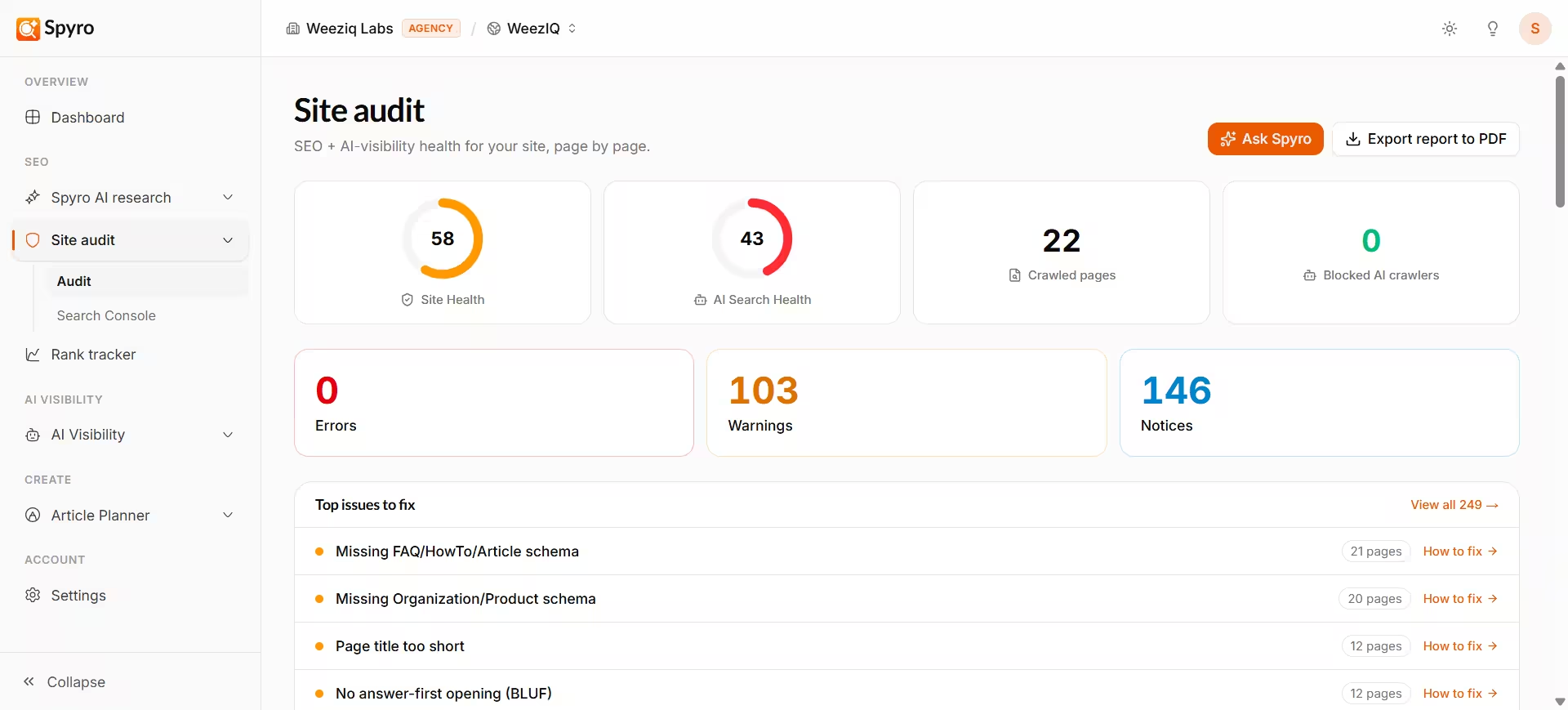 An **audit** is a full health check of your website. Spyro looks over your whole site and scores it on two things: classic **SEO** (how well Google can find, read, and rank your pages) and **AI readiness** (how easily AI assistants like ChatGPT can understand and quote your content). You get a scored report that groups every issue by how serious it is, so you know exactly what to fix first.
## Why it matters
You can't improve what you can't see. An audit turns your whole site into a simple to-do list: a clear health score, the problems that are dragging it down, and step-by-step fixes for each one. Run one now to get your baseline, then run it again later to watch your score climb.
## How to run an audit
Go to **Site audit** in the left sidebar. If you've never run one for this site, you'll see a **Run audit** button.
Click **Run audit**. Spyro looks over your whole site - the button shows **Crawling...** and the page updates itself every few seconds. You don't need to reload or wait around.
When it's done, your scores and full report appear, along with a downloadable PDF. Run it again any time to refresh your scores and see what changed.
You don't have to re-check your whole site to test a single fix. Use **URL checks** to re-check one page on demand, or the **Re-check after fixes** button on any page's report.
## What you'll see
At the top of the report, you always get a quick summary: two big score rings - **Site Health** (your SEO score) and **AI Search Health** (your AI-readiness score), each out of 100 - plus counts of **Errors**, **Warnings**, and **Notices** found across your site.
Below the summary, you can switch between a few views:
Every page Spyro checked, weakest first, with each page's scores and a health badge. Click any page to see its full detail.
Every issue found, grouped by how serious it is, with a short **how to fix** note for each one.
Your scores over time, what changed since your last check, and an estimate of how high your score could go once you fix things.
Check a single page on demand - handy for spot-checking one URL after you've made edits.
### Per-page detail
Click any page to open its own report. You'll see that page's scores, the issues found on it, an **AI readiness** view, and a history of how it's changed. Each issue comes with plain-language advice on how to fix it.
To learn how to read your scores, issues, fixes, and the PDF in depth, see [Understand your reports](/docs/product/understanding-reports).
## Re-check and the "Ask" helper
When you've made a change, you don't have to wait. Open the page and click **Re-check after fixes** - Spyro re-checks just that page and shows you a before-and-after so you can confirm the fix worked.
Not sure where to start? Click **Ask Spyro** to chat with a helper that knows *your* audit. Ask things like *"Why is my AI score low?"* or *"What should I fix first?"* and it answers using your own results. You can ask about your whole site or about one page.
For any single issue, you can also ask Spyro to **suggest a fix**. It gives you a short, do-this-now recommendation tailored to your site. It's advice for you to apply - Spyro doesn't change your site for you.
## Tips
* Run your first audit right after setup to get your starting scores.
* Fix the **Errors** first - they have the biggest impact - then work through Warnings and Notices.
* Re-run the audit after a round of fixes to watch your score improve.
* Check the **History** view to see your progress over time.
## Related
An **audit** is a full health check of your website. Spyro looks over your whole site and scores it on two things: classic **SEO** (how well Google can find, read, and rank your pages) and **AI readiness** (how easily AI assistants like ChatGPT can understand and quote your content). You get a scored report that groups every issue by how serious it is, so you know exactly what to fix first.
## Why it matters
You can't improve what you can't see. An audit turns your whole site into a simple to-do list: a clear health score, the problems that are dragging it down, and step-by-step fixes for each one. Run one now to get your baseline, then run it again later to watch your score climb.
## How to run an audit
Go to **Site audit** in the left sidebar. If you've never run one for this site, you'll see a **Run audit** button.
Click **Run audit**. Spyro looks over your whole site - the button shows **Crawling...** and the page updates itself every few seconds. You don't need to reload or wait around.
When it's done, your scores and full report appear, along with a downloadable PDF. Run it again any time to refresh your scores and see what changed.
You don't have to re-check your whole site to test a single fix. Use **URL checks** to re-check one page on demand, or the **Re-check after fixes** button on any page's report.
## What you'll see
At the top of the report, you always get a quick summary: two big score rings - **Site Health** (your SEO score) and **AI Search Health** (your AI-readiness score), each out of 100 - plus counts of **Errors**, **Warnings**, and **Notices** found across your site.
Below the summary, you can switch between a few views:
Every page Spyro checked, weakest first, with each page's scores and a health badge. Click any page to see its full detail.
Every issue found, grouped by how serious it is, with a short **how to fix** note for each one.
Your scores over time, what changed since your last check, and an estimate of how high your score could go once you fix things.
Check a single page on demand - handy for spot-checking one URL after you've made edits.
### Per-page detail
Click any page to open its own report. You'll see that page's scores, the issues found on it, an **AI readiness** view, and a history of how it's changed. Each issue comes with plain-language advice on how to fix it.
To learn how to read your scores, issues, fixes, and the PDF in depth, see [Understand your reports](/docs/product/understanding-reports).
## Re-check and the "Ask" helper
When you've made a change, you don't have to wait. Open the page and click **Re-check after fixes** - Spyro re-checks just that page and shows you a before-and-after so you can confirm the fix worked.
Not sure where to start? Click **Ask Spyro** to chat with a helper that knows *your* audit. Ask things like *"Why is my AI score low?"* or *"What should I fix first?"* and it answers using your own results. You can ask about your whole site or about one page.
For any single issue, you can also ask Spyro to **suggest a fix**. It gives you a short, do-this-now recommendation tailored to your site. It's advice for you to apply - Spyro doesn't change your site for you.
## Tips
* Run your first audit right after setup to get your starting scores.
* Fix the **Errors** first - they have the biggest impact - then work through Warnings and Notices.
* Re-run the audit after a round of fixes to watch your score improve.
* Check the **History** view to see your progress over time.
## Related