> ## Documentation Index
> Fetch the complete documentation index at: https://spyro.app/docs/llms.txt
> Use this file to discover all available pages before exploring further.
# AI mentions
> A live feed of the actual answers AI assistants gave - whether they mentioned you, the tone they used, and the exact words - so you can see precisely how AI talks about your brand.
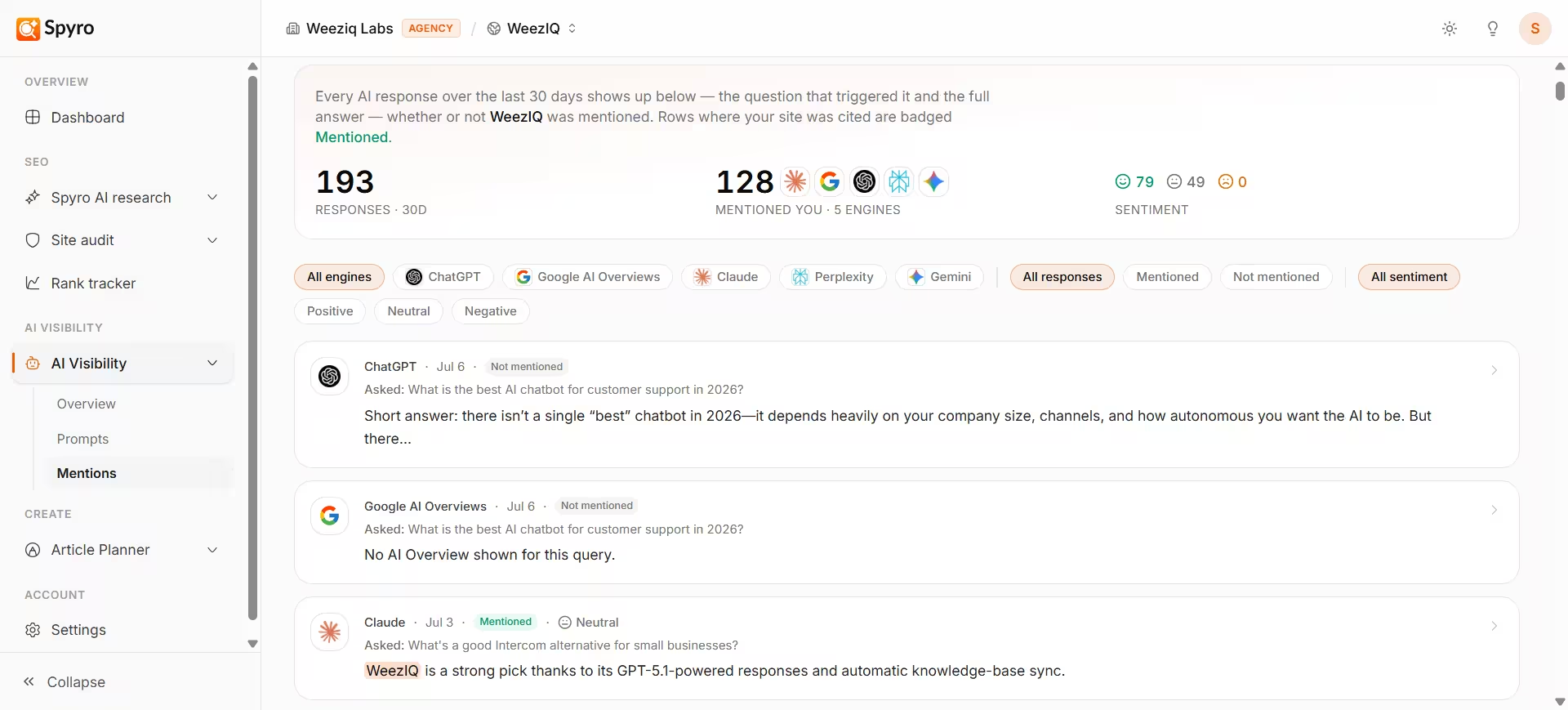 **AI mentions** is your front-row seat to what the AI assistants actually *say*. It's a live feed of every answer ChatGPT, Gemini, Claude, and Perplexity gave to your [tracking prompts](/docs/product/prompts) - so instead of just numbers, you see the real words.
Where [AI visibility](/docs/product/ai-visibility) tells you *how often* you're mentioned and [Tracking prompts](/docs/product/prompts) manages *what gets asked*, this view shows you the *exact answers* - including the precise sentence where your brand appears.
## Why use it
See word-for-word what AI assistants told buyers who asked.
See whether each mention of you was positive, neutral, or negative.
Spot answers steering buyers away from you - the most important ones to fix.
See the real answers behind any change in your AI visibility.
## What's in the feed
Each row is one AI answer from the last 30 days, newest first. For every answer you can see:
* **Which assistant answered** - ChatGPT, Gemini, Claude, or Perplexity.
* **When** the check ran.
* **The question** that prompted the answer.
* **Whether it mentioned you** - a green **Mentioned** badge when it named you.
* **The tone** - positive, neutral, or negative, for answers that mentioned you.
* **The snippet** - the exact excerpt of the answer, with your brand highlighted.
A summary at the top rolls up the same 30 days: how many answers there were, how many mentioned you, and the overall positive / neutral / negative split.
## How to use it
In the sidebar, open **AI mentions** (part of AI visibility).
Look for **Mentioned** badges to see which answers actually named you, and on which assistants.
The highlighted snippet shows the exact sentence you appeared in, so you can judge *how* you were described - not just whether you were named.
Pay special attention to negative answers. Those are steering buyers away from you, and fixing them has the biggest payoff.
Click any row to read the complete response, plus any sources the assistant linked to.
## What to expect
* The feed shows **every** answer in the window - mentioned or not - so you can see the full picture, even when an assistant didn't name you.
* Tone is only shown for answers that actually mentioned you. A very recent answer may briefly show as not yet labeled.
* Each answer links to the full response and its sources, so you can read it in full context.
## Tips
* This feed is the best place to understand *why* your [share of voice](/docs/product/ai-visibility) moved. A drop usually traces back to a specific answer here - a rival the assistant started recommending, or a question where it stopped naming you.
* When you find a negative or missed mention, note the question, then improve the content that should be answering it.
## Related
**AI mentions** is your front-row seat to what the AI assistants actually *say*. It's a live feed of every answer ChatGPT, Gemini, Claude, and Perplexity gave to your [tracking prompts](/docs/product/prompts) - so instead of just numbers, you see the real words.
Where [AI visibility](/docs/product/ai-visibility) tells you *how often* you're mentioned and [Tracking prompts](/docs/product/prompts) manages *what gets asked*, this view shows you the *exact answers* - including the precise sentence where your brand appears.
## Why use it
See word-for-word what AI assistants told buyers who asked.
See whether each mention of you was positive, neutral, or negative.
Spot answers steering buyers away from you - the most important ones to fix.
See the real answers behind any change in your AI visibility.
## What's in the feed
Each row is one AI answer from the last 30 days, newest first. For every answer you can see:
* **Which assistant answered** - ChatGPT, Gemini, Claude, or Perplexity.
* **When** the check ran.
* **The question** that prompted the answer.
* **Whether it mentioned you** - a green **Mentioned** badge when it named you.
* **The tone** - positive, neutral, or negative, for answers that mentioned you.
* **The snippet** - the exact excerpt of the answer, with your brand highlighted.
A summary at the top rolls up the same 30 days: how many answers there were, how many mentioned you, and the overall positive / neutral / negative split.
## How to use it
In the sidebar, open **AI mentions** (part of AI visibility).
Look for **Mentioned** badges to see which answers actually named you, and on which assistants.
The highlighted snippet shows the exact sentence you appeared in, so you can judge *how* you were described - not just whether you were named.
Pay special attention to negative answers. Those are steering buyers away from you, and fixing them has the biggest payoff.
Click any row to read the complete response, plus any sources the assistant linked to.
## What to expect
* The feed shows **every** answer in the window - mentioned or not - so you can see the full picture, even when an assistant didn't name you.
* Tone is only shown for answers that actually mentioned you. A very recent answer may briefly show as not yet labeled.
* Each answer links to the full response and its sources, so you can read it in full context.
## Tips
* This feed is the best place to understand *why* your [share of voice](/docs/product/ai-visibility) moved. A drop usually traces back to a specific answer here - a rival the assistant started recommending, or a question where it stopped naming you.
* When you find a negative or missed mention, note the question, then improve the content that should be answering it.
## Related